
Adding Reserve Requests
Use the instructions below to add requests to your reserves reading list, regardless of format type. There is no separate option to add film requests.
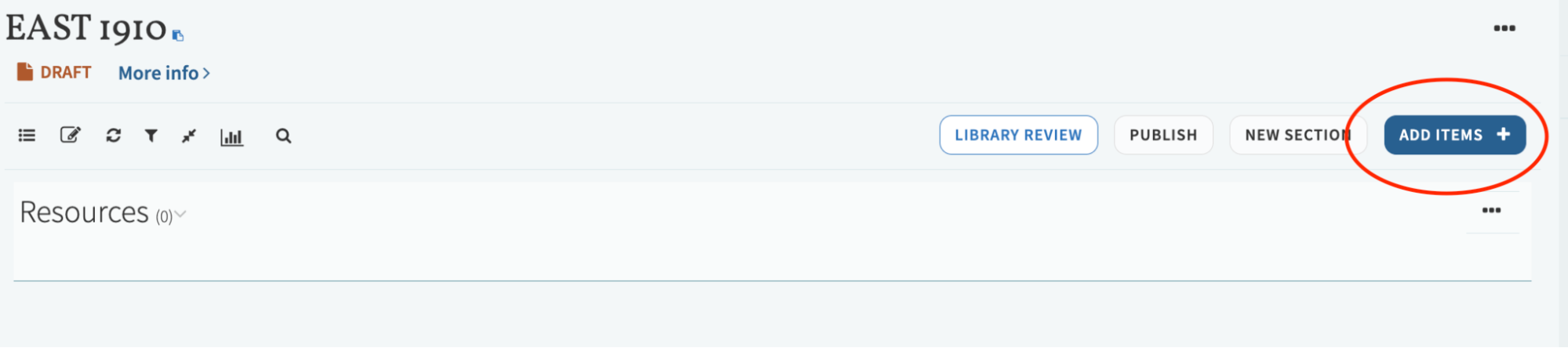
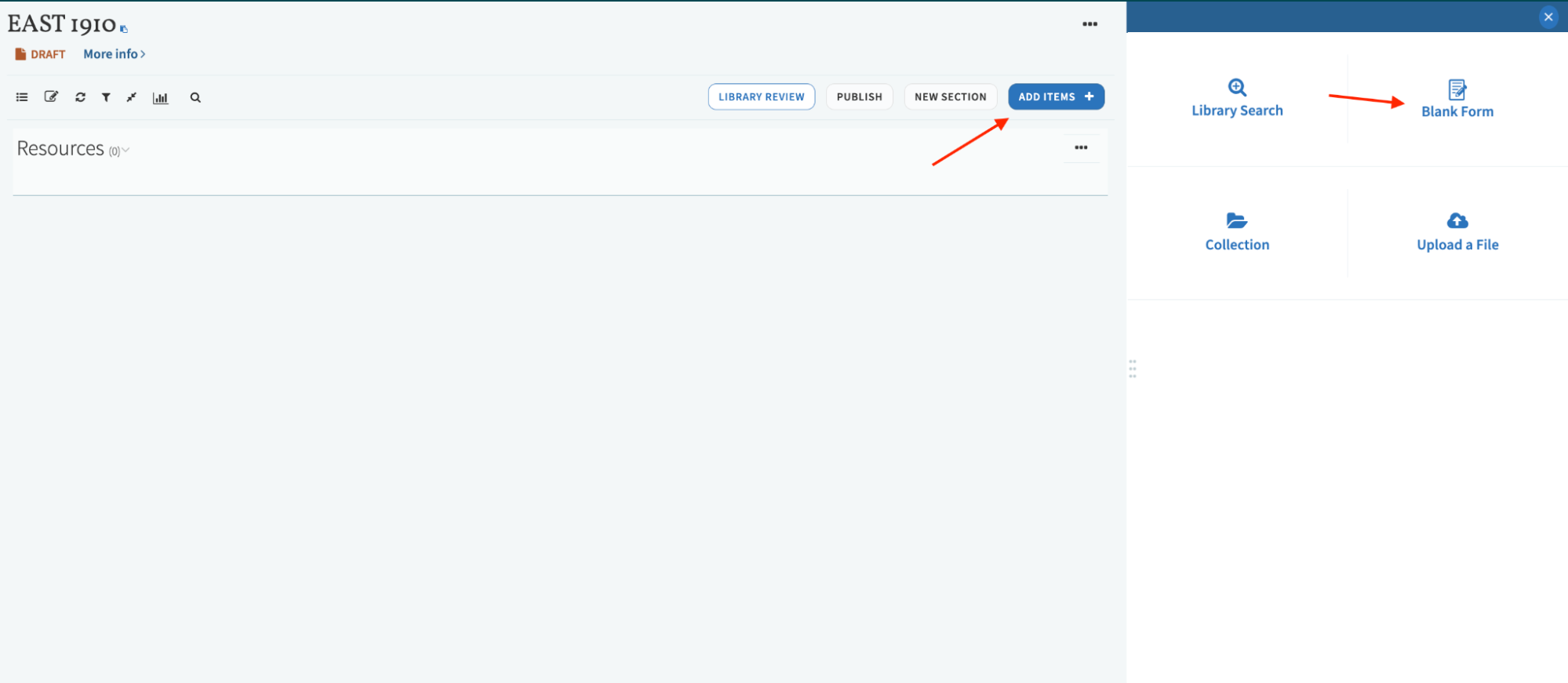
To add a reserves request to your course, while viewing your reading list, start by selecting Add items.
From the sidebar, you’ll see a few options for adding requests to your course.
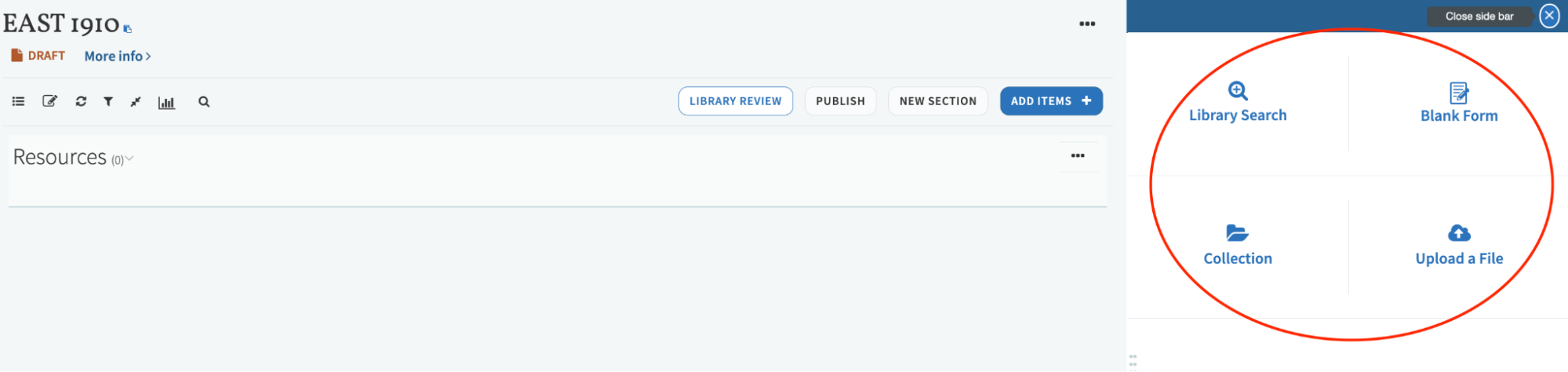
- An option for Library Search
Use this option to search the library’s BruKnow online catalog to place a request for an item that is held in the library’s current collection. - An option for Blank Form where you can manually add a request citation.
Use this option to submit a purchase request, to add a weblink to something that’s online, to upload a PDF of a file, or to place an article or excerpt scan request. - An option for Upload a File
Use this option to upload a PDF file from your computer. You may also add a brief citation when adding the request to your course.
To add requests using the Library Search option
You’ll want to start by entering a book, article or keyword into the search criteria field and then pressing enter or selecting the magnifying glass to search.
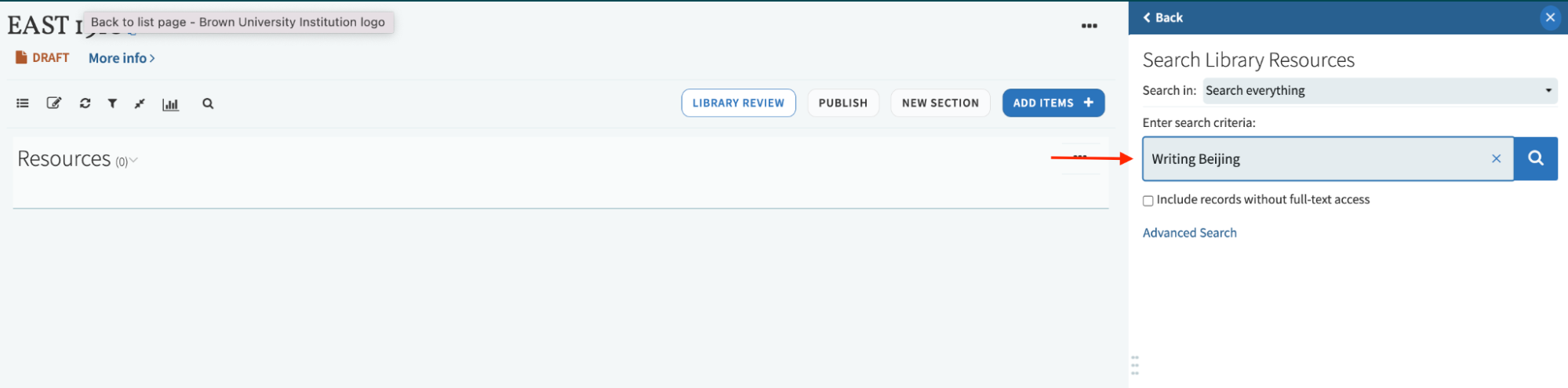
All results for your title or keyword will appear in the search results along with the item availability.
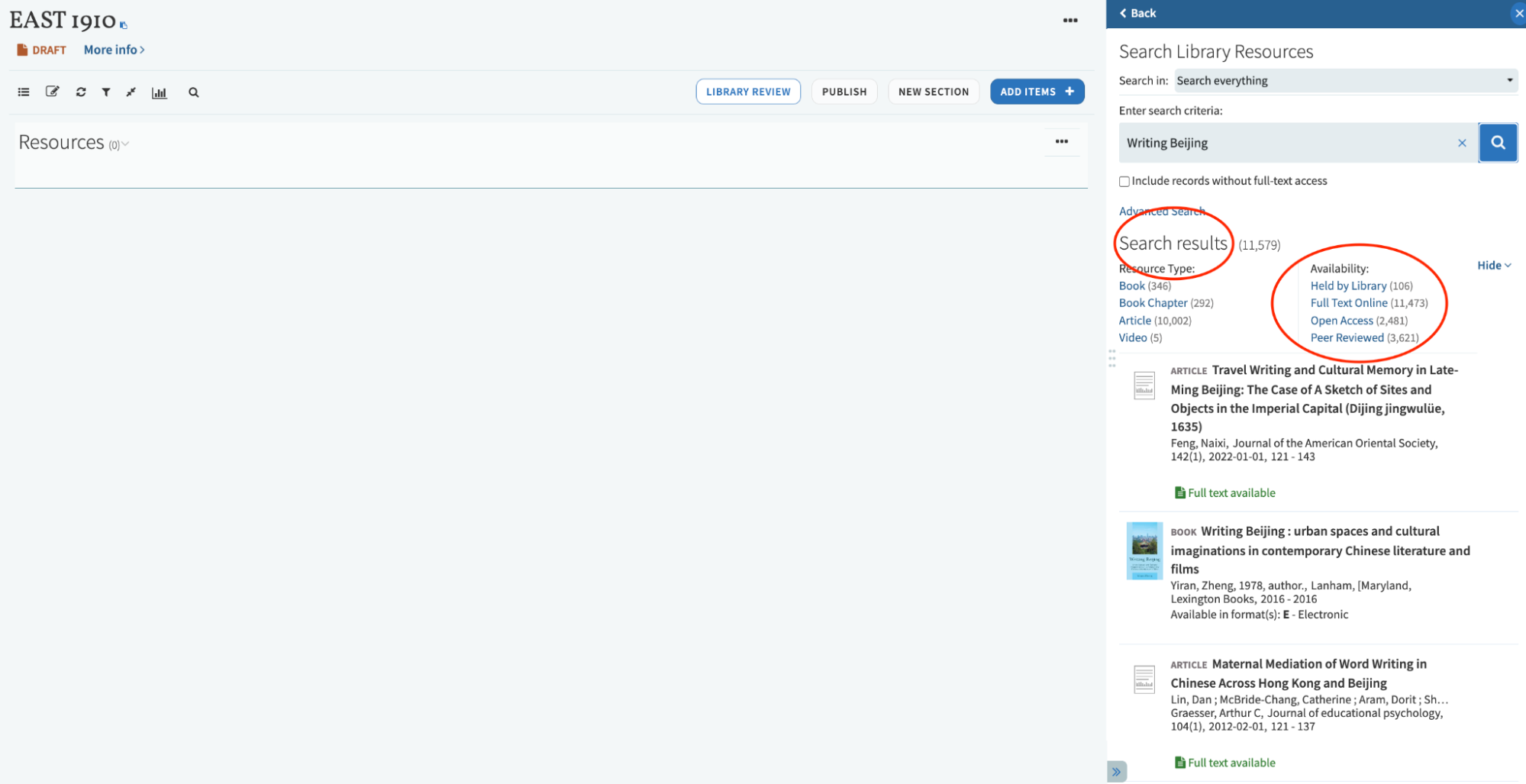
If you have a lot of search results, you can use the facets under your search results at the top to limit your results by resource type
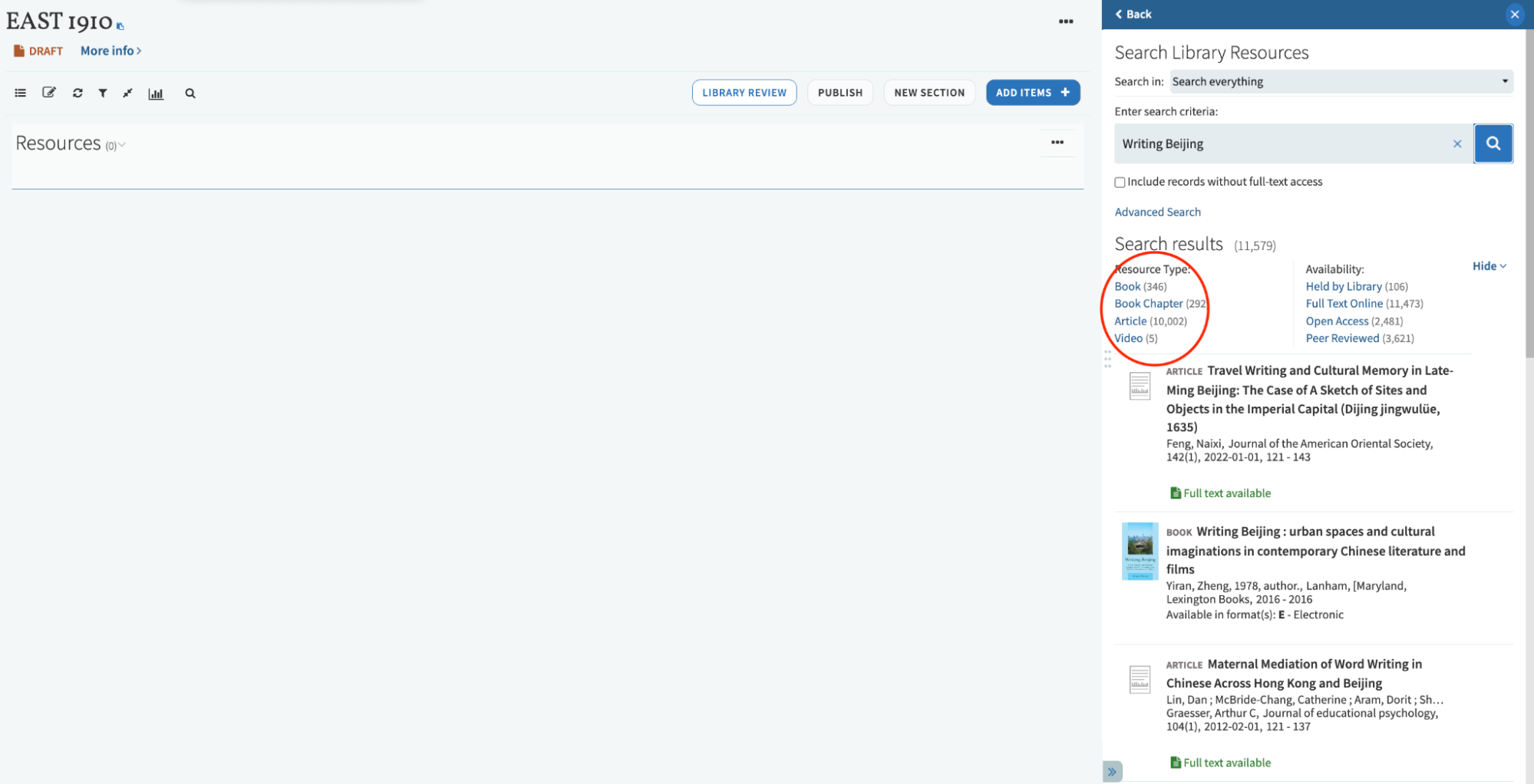
To add a request for an item from your search results, select from the list the item that you would like to add. if you’re using multiple sections, select the appropriate section where you would like to add the reserves request and select Add.

You’ll see that the request for the book, Writing Beijing, has now been added to the resource list.
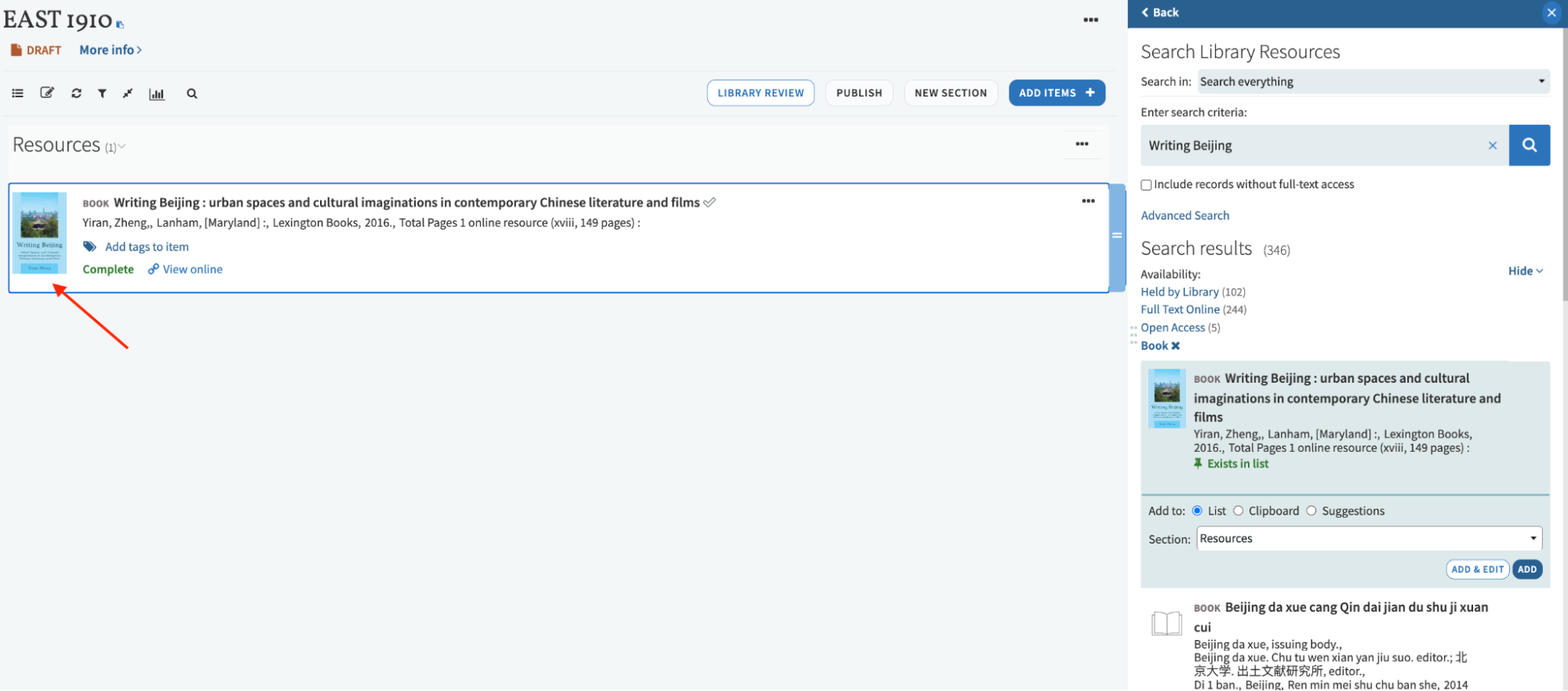
If you are using a template with multiple sections by week or resource type, you can also drag and drop a resource into a given week or section by selecting the resource from the list of search results and then dragging and dropping the citation into the section that you would like to have it listed under.
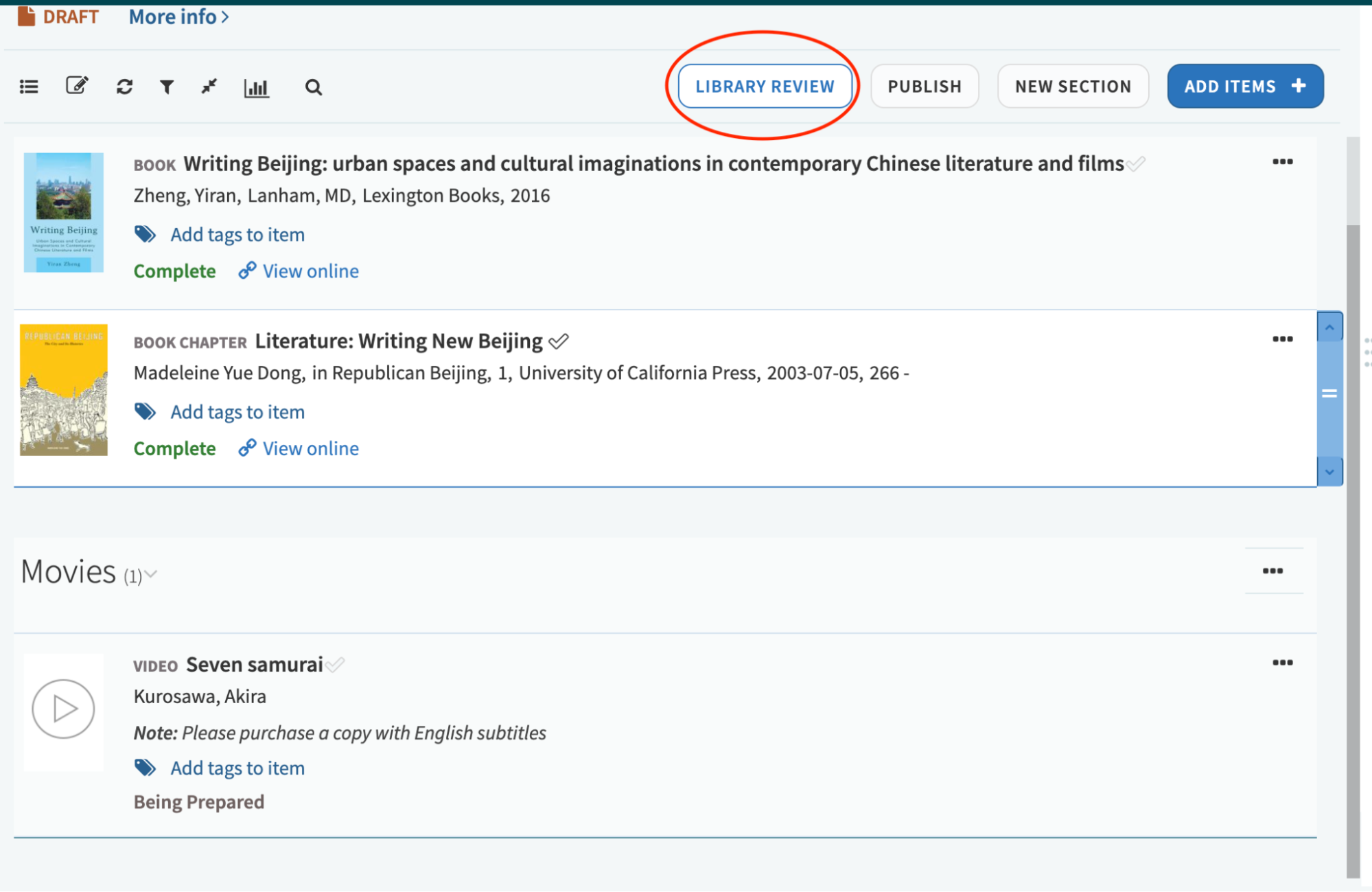
When you’ve completed placing your reserves requests, go to the top of the page and select Library Review to send the list to the library so that they can review your requests and begin placing the materials on reserve for student use.
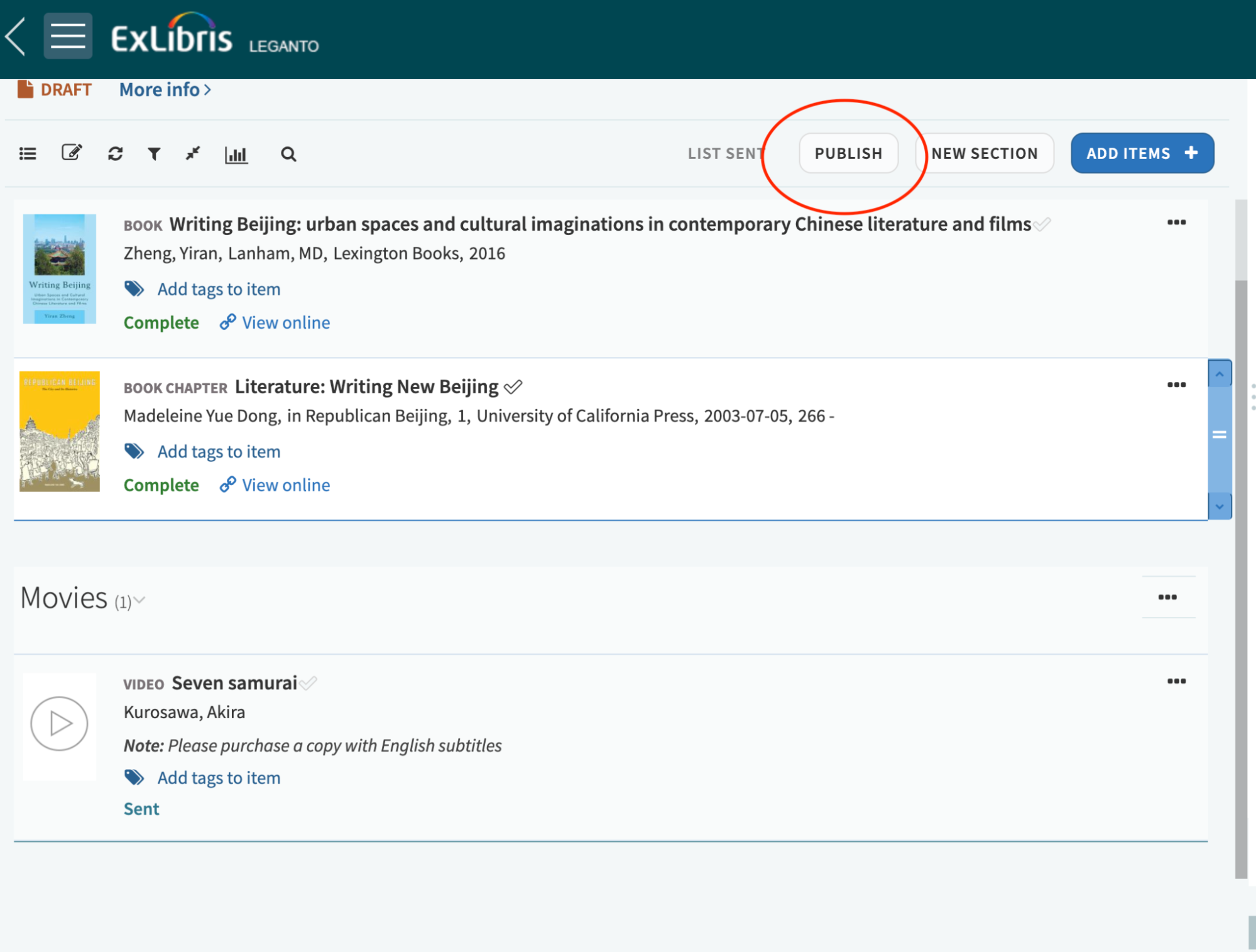
After sending your list to the library to process, you want to go to the option to the right for Publish. This will make your reading list live for your students so that they can view and access the content. Without selecting this, your list will be in Draft mode and not visible to students.
Using the Blank Form option to add requests
Use this option to:
- Add a manual citation for a request.
- To place an article or excerpt scan request.
- To submit a purchase request,
- To add a weblink to something that’s online,
- To upload a PDF of a file
To use the Blank Form option, select Add Items from the top of your reading list and select Blank Form from the options displayed.
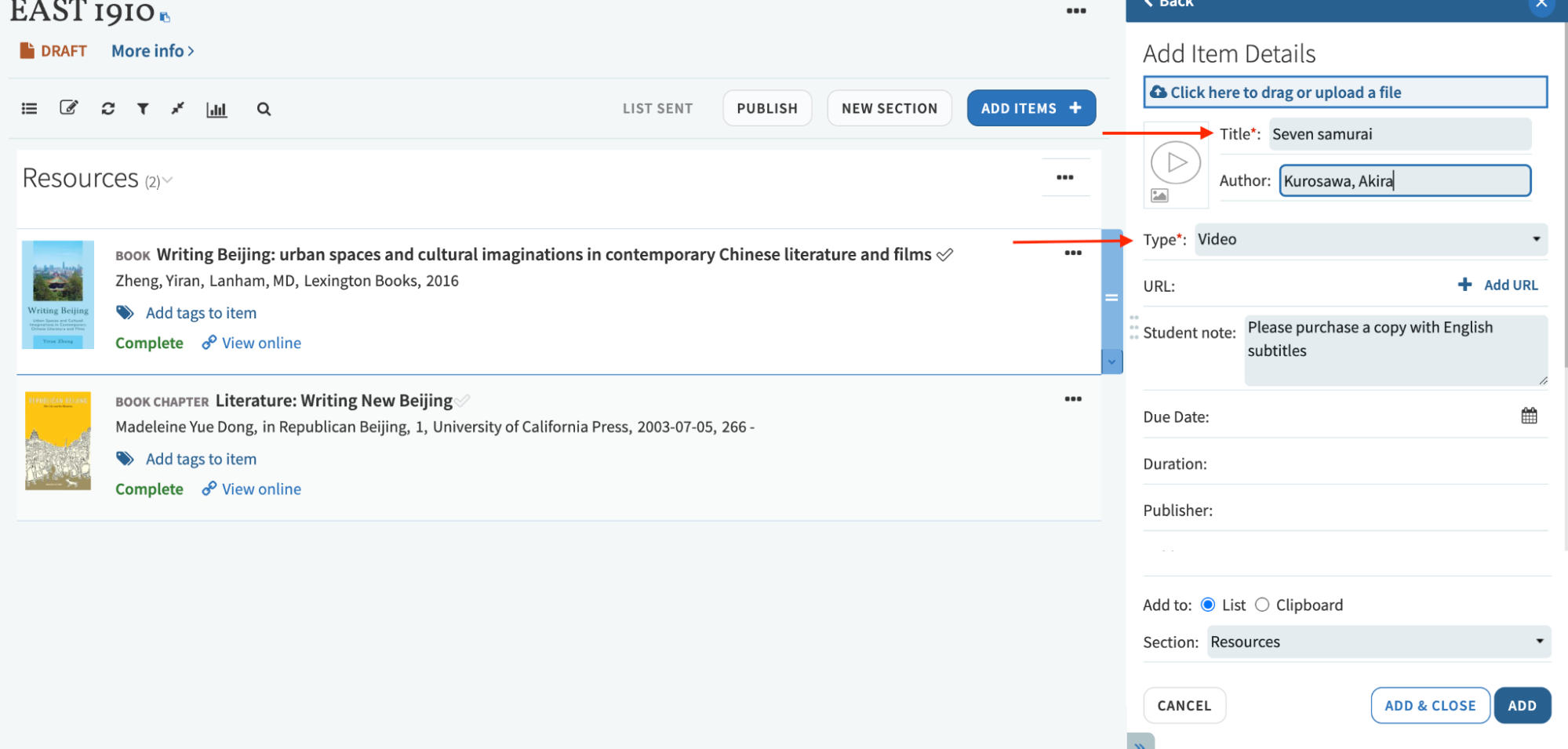
To add requests using the Blank Form option, enter as much citation information that you have into the various fields. Only the Title field and item Type field are required.
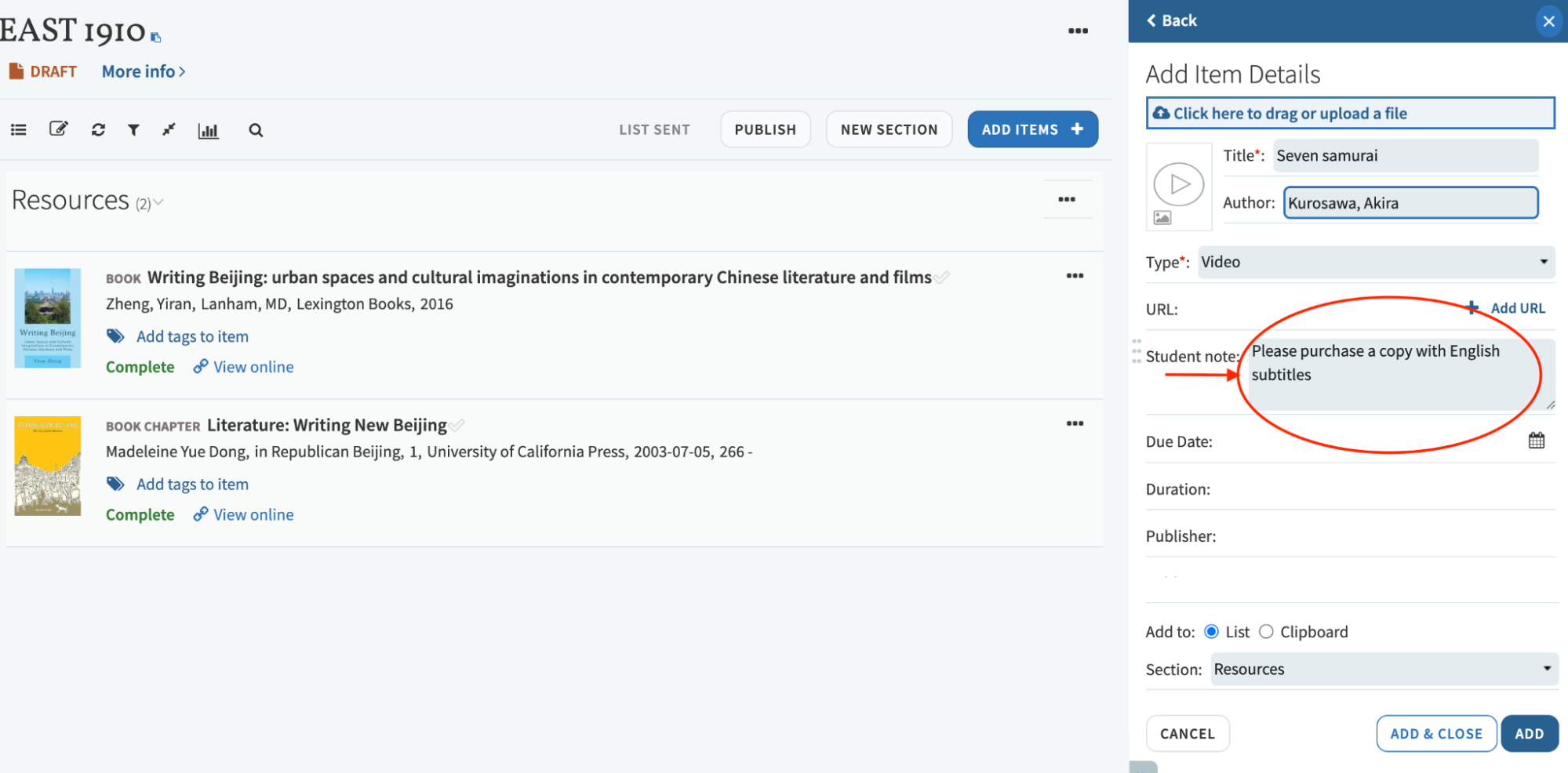
Use the Student Note field to provide library staff with any helpful information to process a request, or to provide additional information to your students.
If you are using sections to organize your reading list, you’ll want to select that from the drop down list under Section and click Add to add your request.
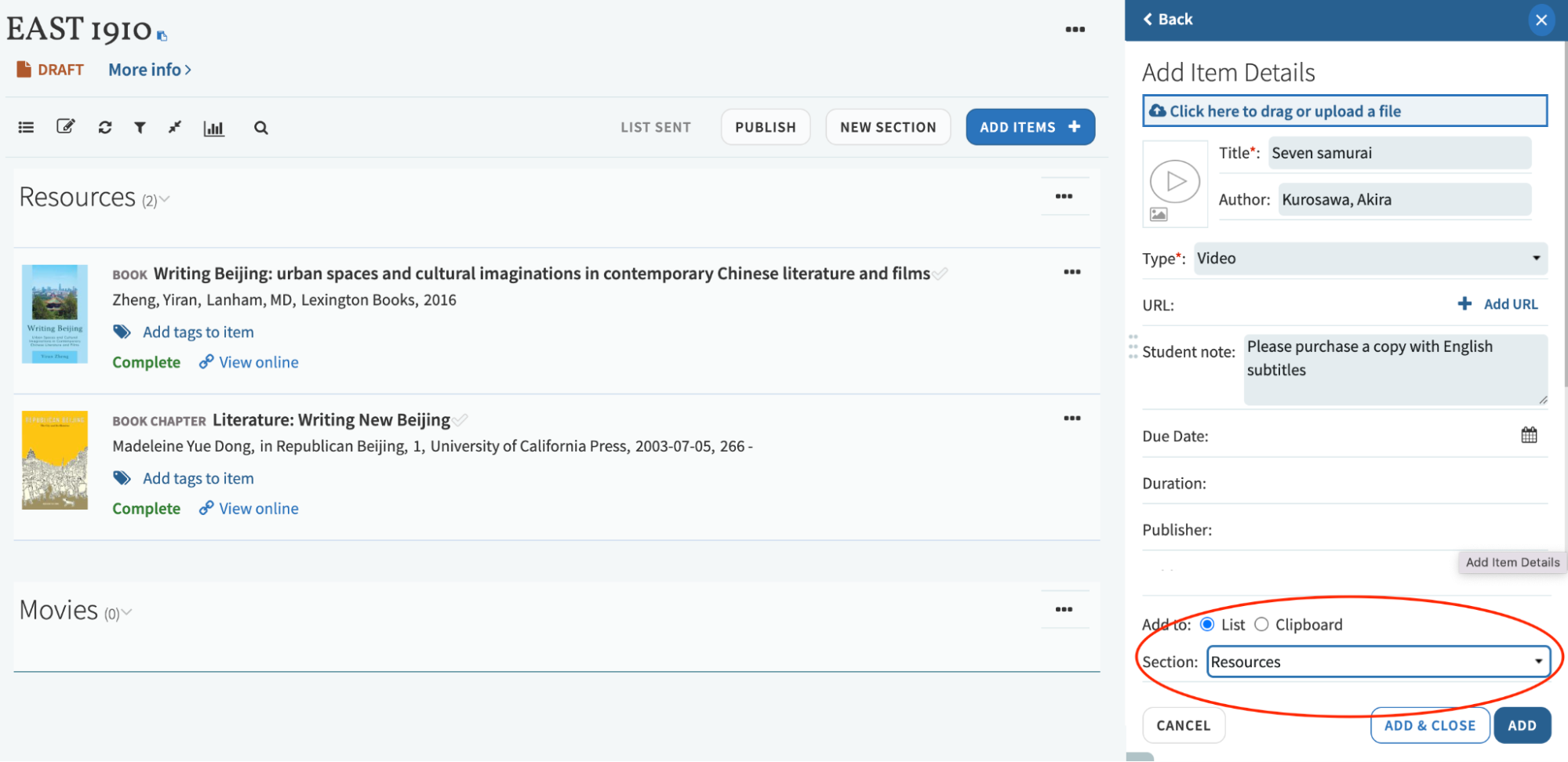
Next, you’ll see that a request for the item has been added to the reading list.
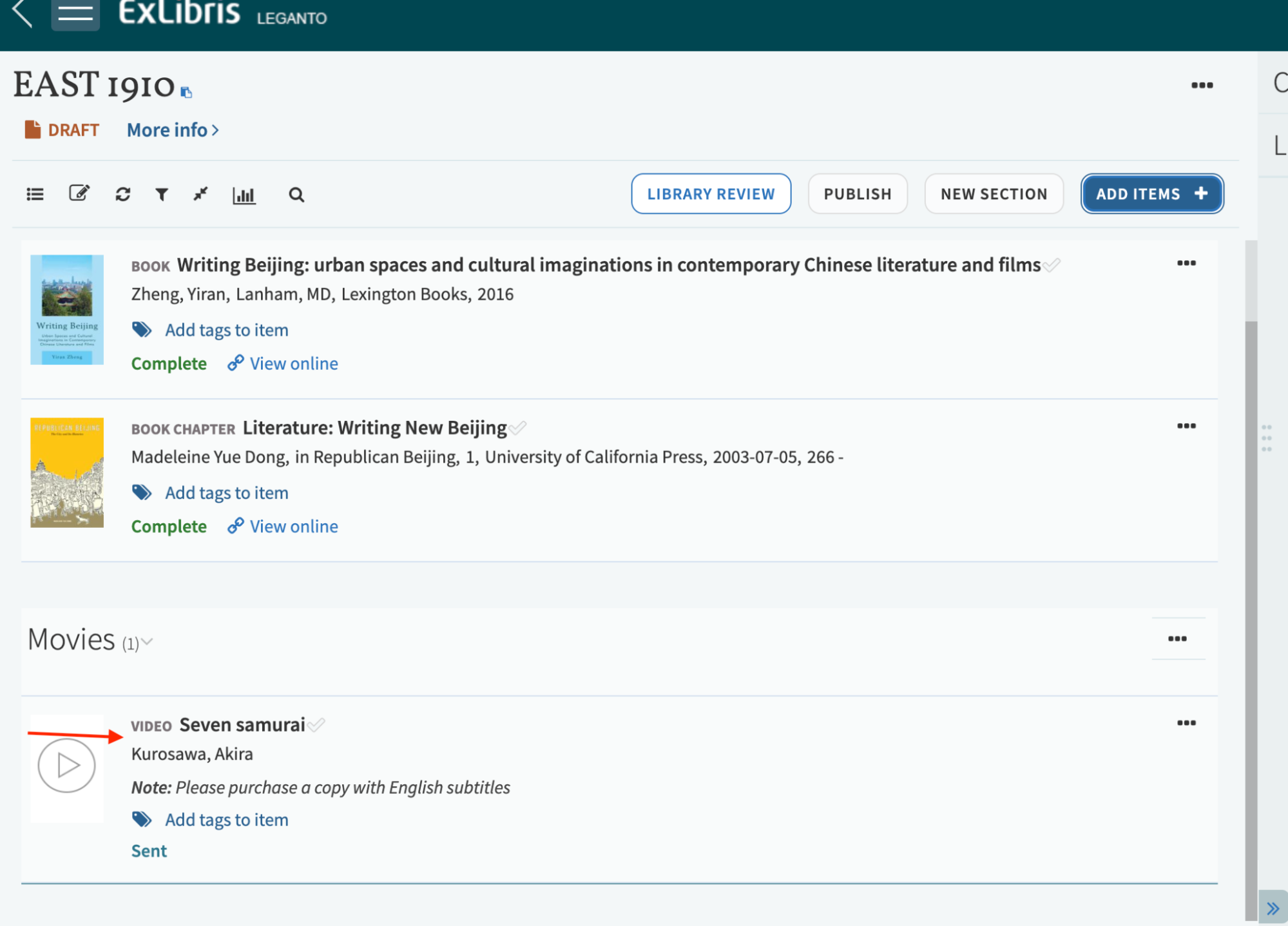
When you’ve completed placing your reserves requests, go to the top of the page and select Library Review to send the list to the library so that they can review your requests and begin placing the materials on reserve for student use.
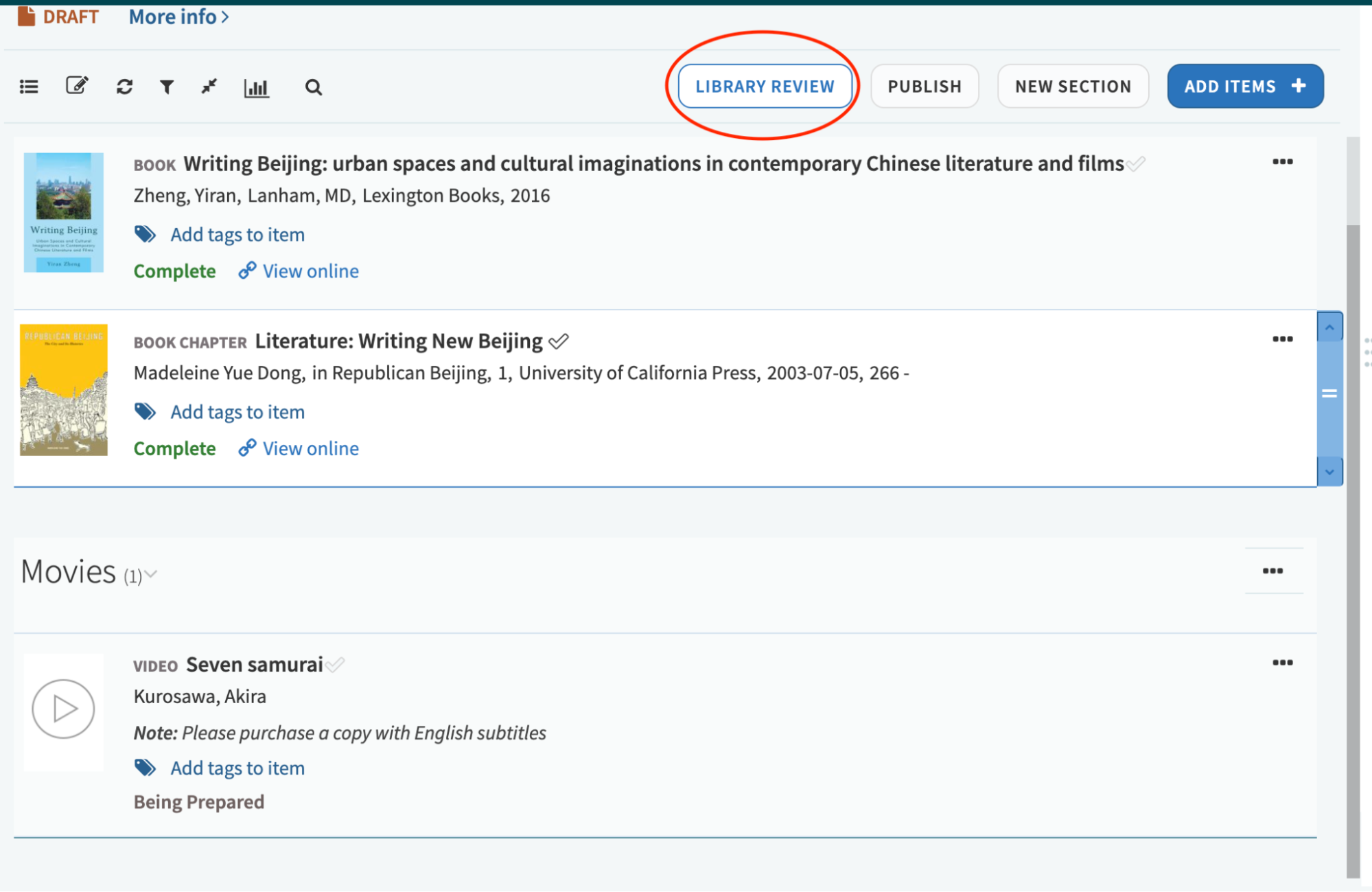
After sending your list to the library to process, you want to go to the option to the right for Publish. This will make your reading list live for your students so that they can view and access the content. Without selecting this, your list will be in Draft mode and not visible to students.
Using Upload a File to add requests
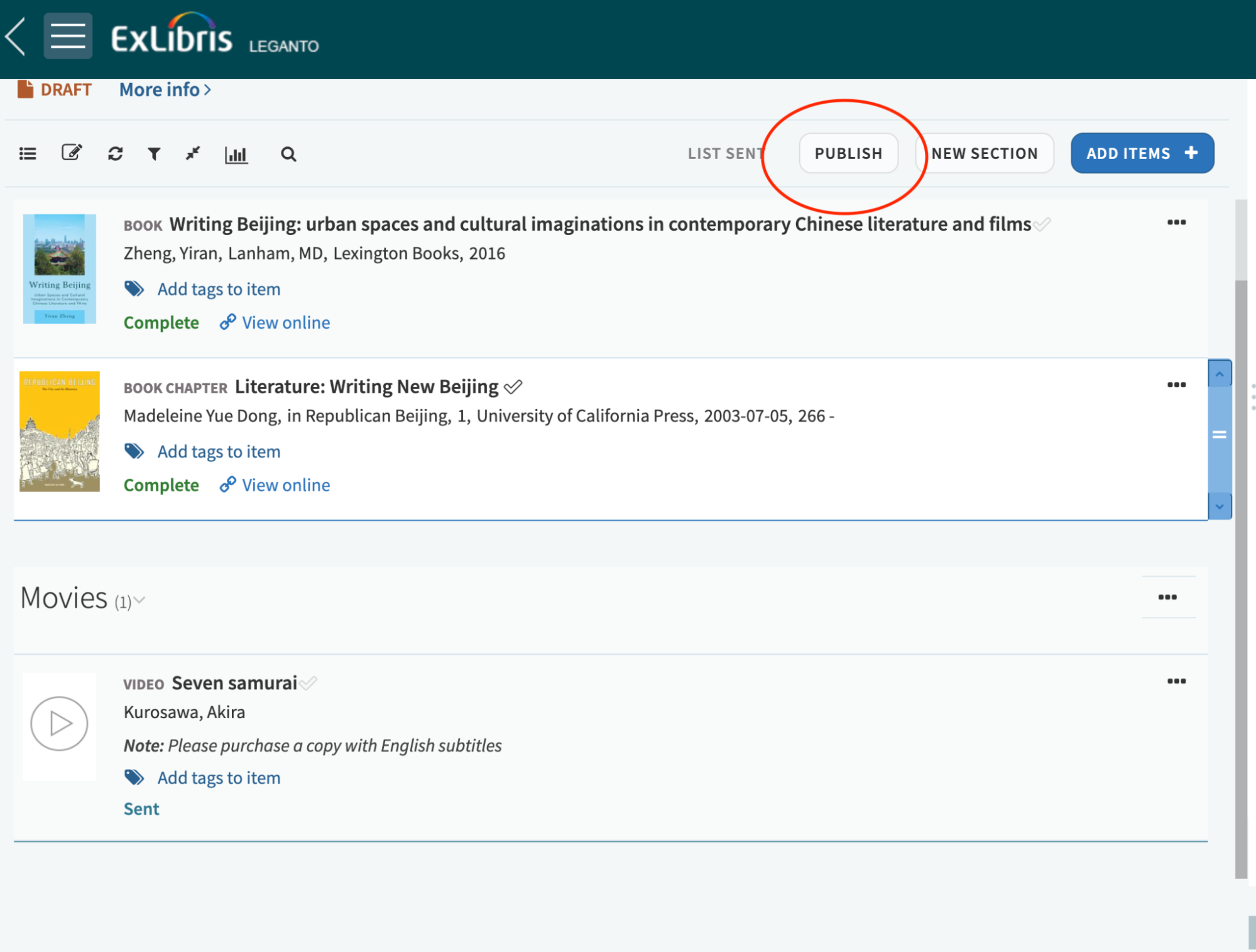
To use this option, go to Add items, and then select Upload a File to upload a file of a PDF or reading.
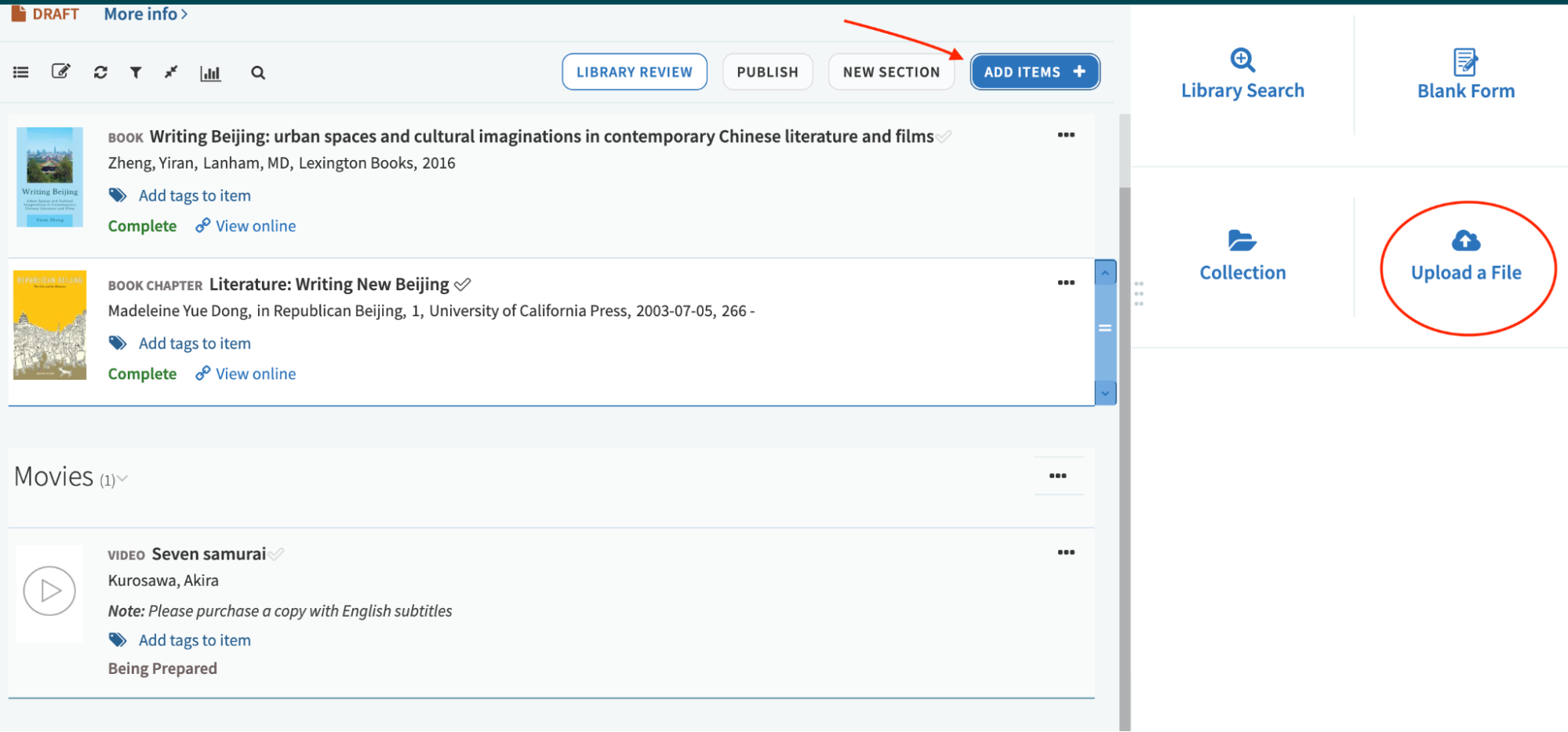
You can drag the file from your computer into the blue area, or you can click on this section to search your computer for a file and upload it.
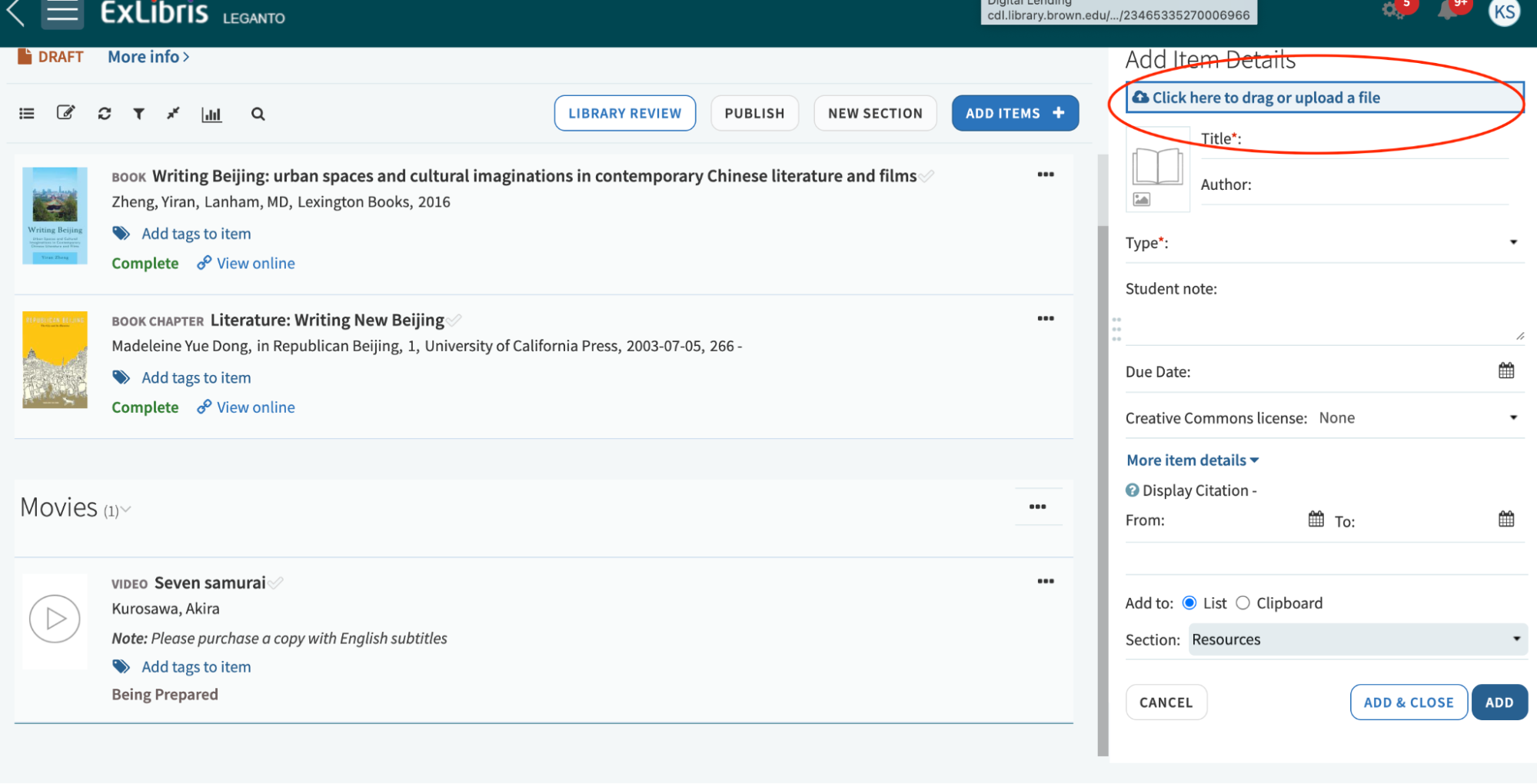
After selecting your file from your computer or dragging your file into the blue area, you will see some Fair Use declaration questions that you have to answer, and then you can enter a brief citation for what you are uploading.
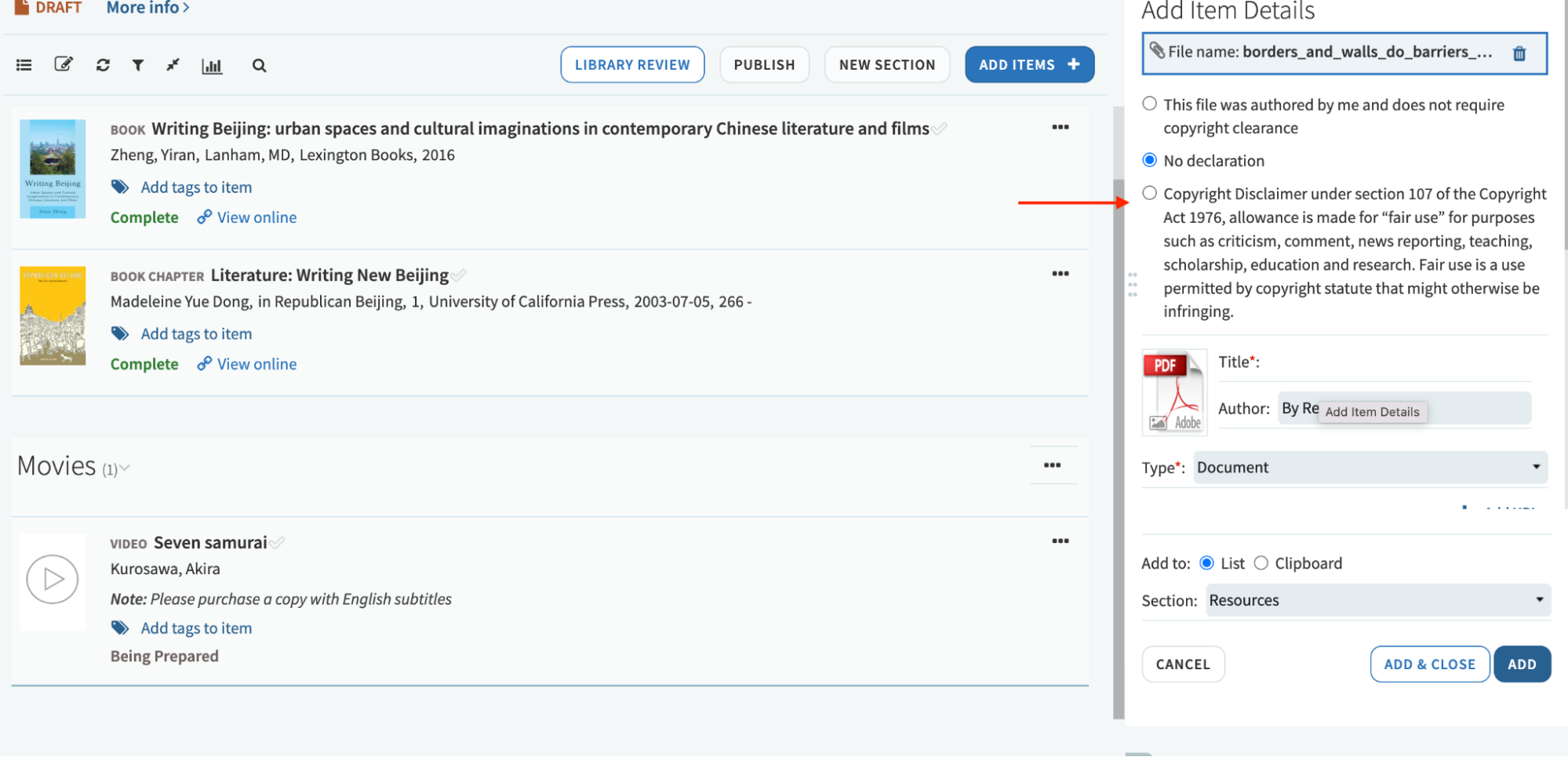
Select the Section that you’d like to add the request to and then select Add.

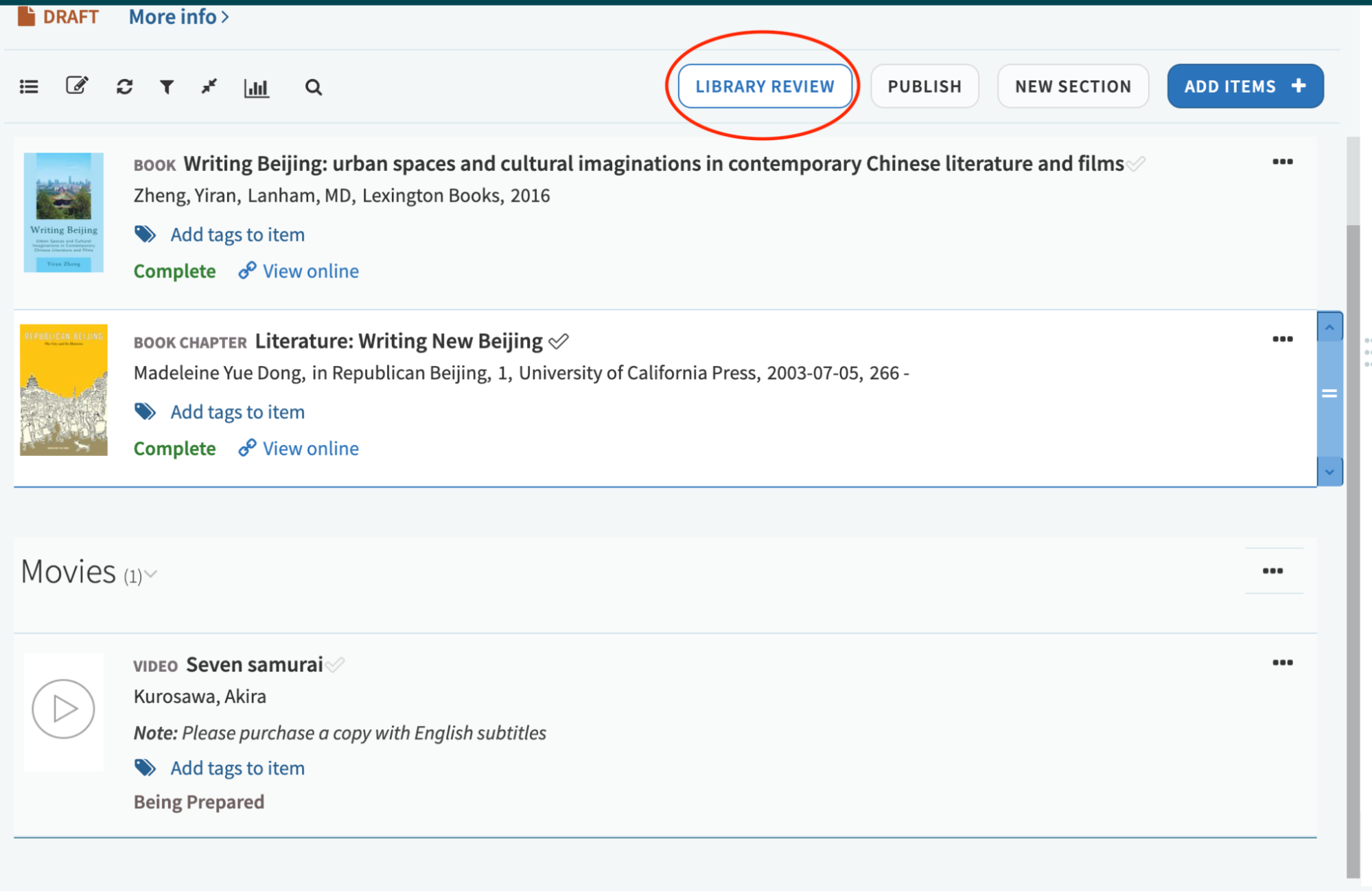
When you’ve completed placing your reserves requests, go to the top of the page and select Library Review to send the list to the library so that they can review your requests and begin placing the materials on reserve for student use.
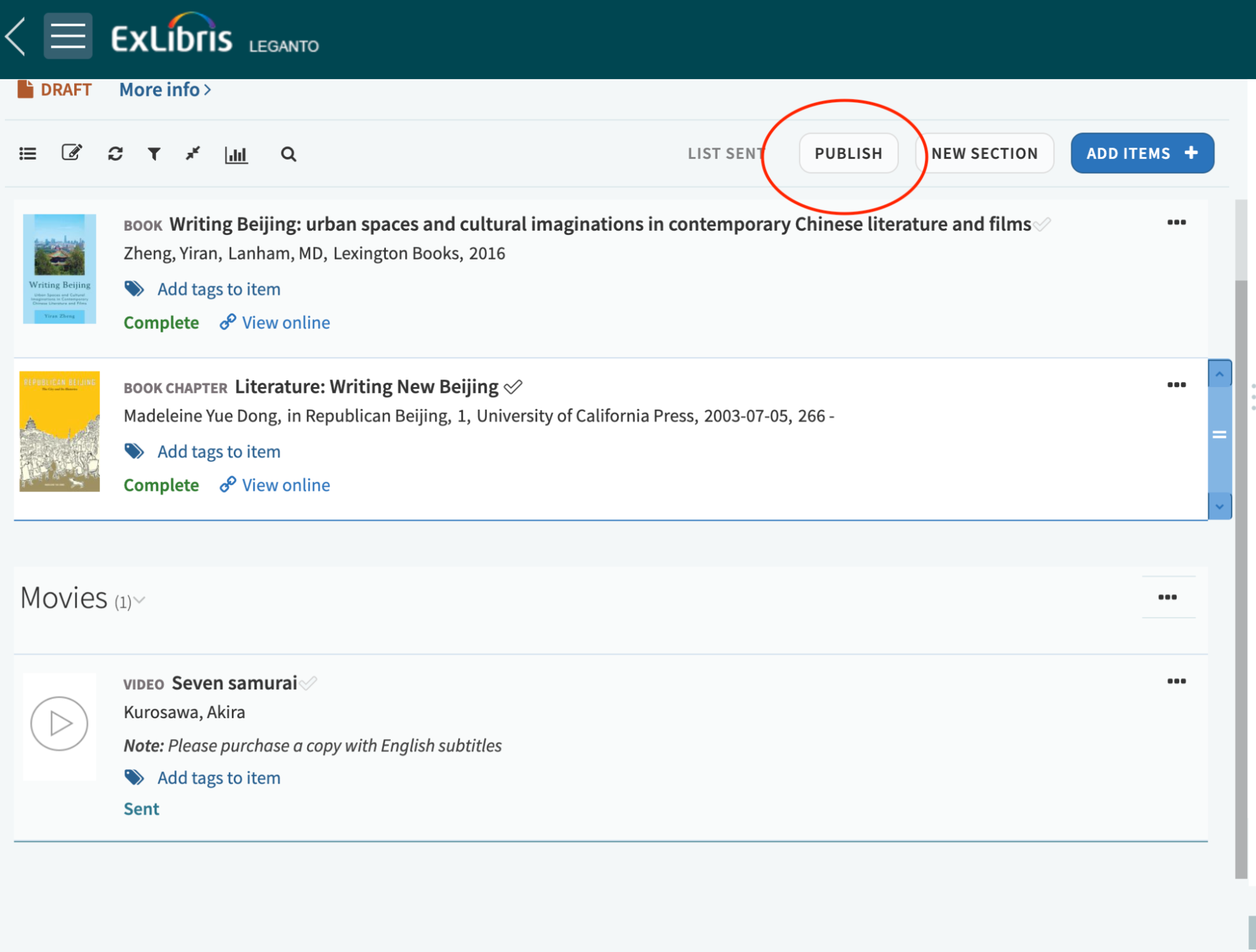
After sending your list to the library to process, you want to go to the option to the right for Publish. This will make your reading list live for your students so that they can view and access the content. Without selecting this, your list will be in Draft mode and not visible to students.
Creating new sections in your reading list
The Library’s new Course Reserves service provides instructors with more options to organize and structure their reserves materials. You can create new Sections to list reserves materials by week, item type, etc.
- To add a new section, select the option for New Section

- Enter a title for the section. Adding a description and dates is optional. Click Create when you are done adding title and description information.

- Select New Section again to create more sections.
- Expand and collapse sections by using the Toggle section view icon near the top of the screen.


- To reorder sections, click on the section you wish to move and drag and drop to your desired location.

- You may also edit section information by clicking on the ellipsis to the right of the section name and select Edit section.

- This opens a dialog box allowing you to change the title, dates, and description of the section. Click Save when you have made all of your changes.
- You may reorder or move citations to a different section by selecting the ellipsis to the right of the citation, and selecting Move citation, or by dragging and dropping the citation into the new section.

Editing request citations
The Library Search tool automatically includes informational metadata from items in the Library’s BruKnow catalog into your request citation.
If you want to add more information to the item, click the ellipsis next to the item title and select Edit item. This will open a dialog box where you can edit the metadata.

Clicking on the resource entry will open a new page with additional editing options:
- Add a reading Due Date
- Add a URL
- Add a Public or Private Note. A private note is only visible to the instructor, and a Public Note is visible to anyone viewing the course, including students and library staff.
- Set dates for the visibility of the citation and item.

Delete a request citation
You can delete an item request from your reading list by clicking on the ellipsis icon and selecting Delete item.

Using Collection to add request citations
You can use Collection to save item citations that you would like to access later to be placed on reserve. These item citations can be anything found in our BruKnow catalog. From your Collection, you can easily place a saved item citation in a reading list.
- To start, click Collection on the left sidebar. This will take you to your Collection page.

- To add a new item to your Collection, click the option for Add Items.

- This will next display the search options. Select Library Search to browse our BruKnow catalog.

- After searching for a resource, click the Add button.

You should now see the item citation at the top of your Collection page.

- Go back to your reading list and select Add Items, and then from the add options select Collection.

- Your collection list should appear on the right sidebar. To add a request from your collection to your reading list, click on the citation and drag it into the reading list, or select Add to add the citation to your reading list.

Using tags
Tags is a feature within Course Reserves to inform your students of your preferences regarding an item request.
Tags that are currently available for use within a request citation can be used to convey significance of a given reading for your students:
- Essential
- Recommended
- Optional
- Lecture Readings
- To add a tag to an item, while viewing the request citation in Course Reserves, select the link for Add tags to item

- Select from the list of available Tags how you would like to mark the item

- Select your Tag, and the request will be updated to include the tag in the citation.

- To remove the Tag, click on the “x” in the tag to delete the tag from the citation.

Submitting your reading list for review
When you have completed editing and adding requests to your course, select the LIBRARY REVIEW button (image below) to notify the library that the list is ready for processing. This will send a notification to our reserves team to begin processing your reserves requests.

After sending the list to the library, the button becomes disabled until or unless you make changes to the list. Changes that re-enable the button include: add, edit, or remove a citation, add or edit a public note, or add or remove a section or citation tag.
You can hover over the button to see a tooltip showing when the list was last sent for review and by whom:
